Viewing Transactions
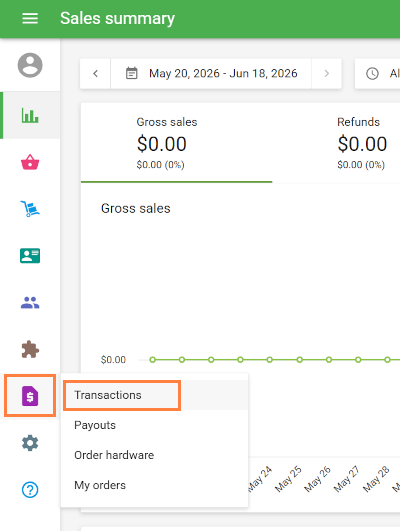
To track card payments and refunds made via Loyverse Payments, go to Back Office → Payments → Transactions.
You'll see a list of transactions with the date, status, card number, store, and amount. You can filter the list by time period, status, or amount.
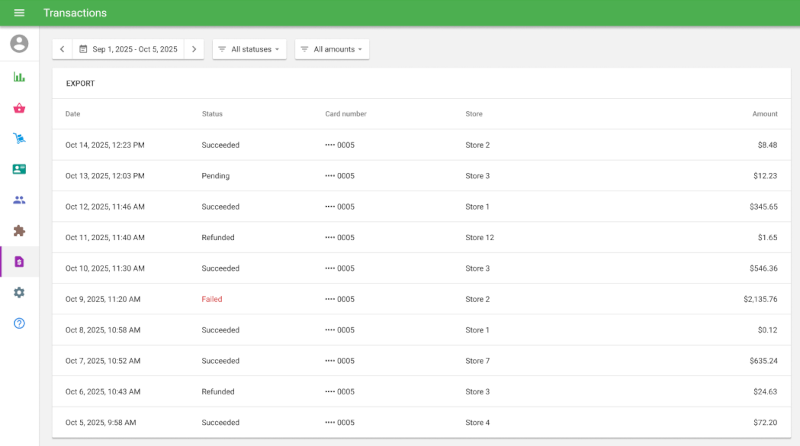
Transaction Statuses
Status | Description |
|---|---|
Succeeded | Payment was completed successfully. |
Failed | Payment could not be completed (e.g., card declined). |
Refunded | The full amount has been refunded. |
Partially Refunded | Part of the payment has been refunded. |
Disputed | The cardholder has disputed the charge with their bank. |
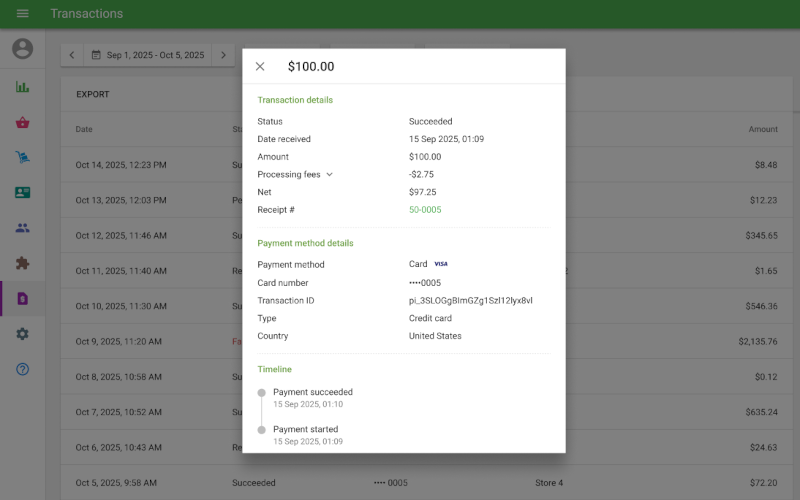
Click any transaction to view its details, including the amount, processing fees, and net amount. The detail view also shows the payment method used and a timeline of events. The Receipt # links directly to the associated receipt.
Viewing Loyverse Payments Payout
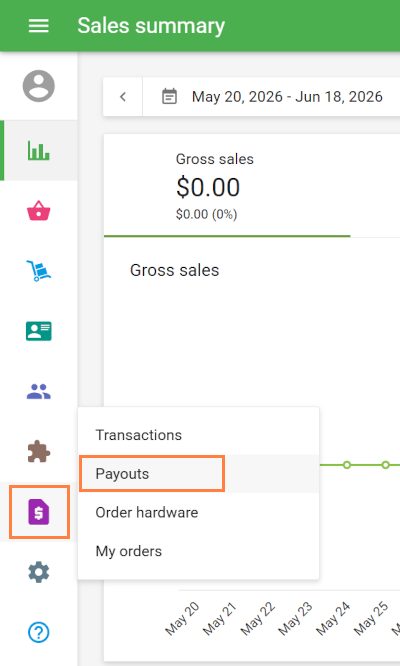
To view your balance summary and payout history, go to Back Office → Payments → Payouts.
Balance Summary
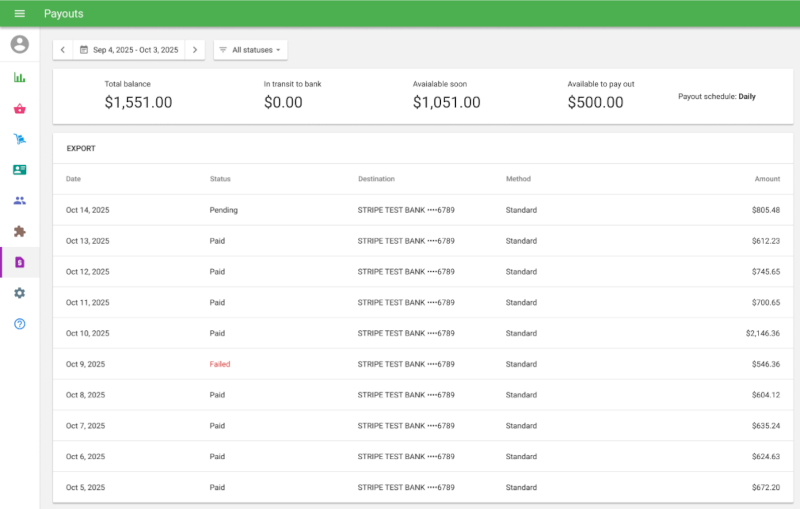
At the top of the page, the balance summary shows where your funds currently are:
Total Balance = In Transit to Bank + Available Soon + Available to Pay Out
Balance Component | Description |
|---|---|
In Transit to Bank | Funds that have been sent to your bank but have not yet arrived. This increases when a payout is created and decreases once your bank confirms receipt. |
Available Soon | Funds from processed payments that are still within the settlement period (up to 2 business days). Moves to "Available to Pay Out" once the settlement is complete. |
Available to Pay Out | Funds that have completed settlement and are ready to be sent to your bank. This can show a negative value if refunds, disputes, or fees exceed your available balance. |
Payout List
Payouts are made automatically daily on working days. Below the balance summary, you'll see a list of all payouts with their status, destination, and amount.
Payout Statuses
Status | Description |
|---|---|
Pending | Payout has been created but hasn't started processing yet. |
In Transit | Funds are on the way to your bank account. |
Paid | Funds have been deposited to your bank account. |
Failed | Payout could not be completed. Funds are returned to your balance. |
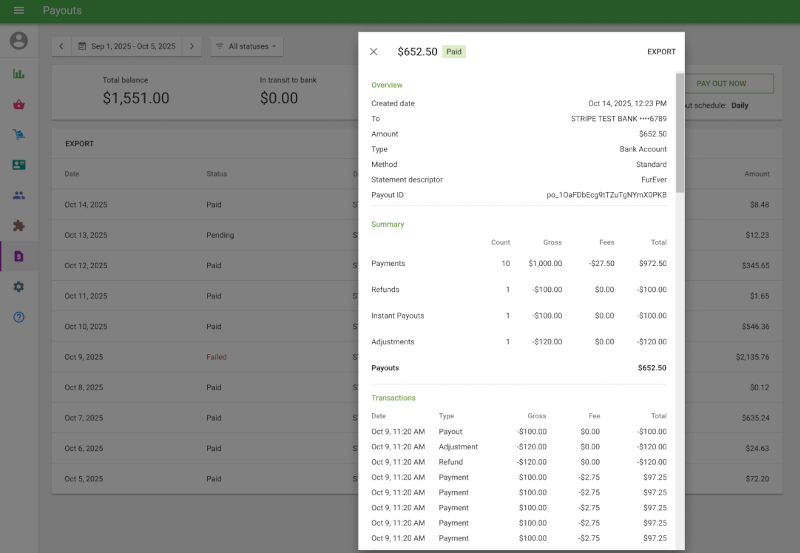
Click any payout to view its details. The Summary section shows totals for payments, refunds, and adjustments, along with associated fees. The Transactions section lists every individual transaction included in the payout. You can export these transactions as a CSV file, which is useful for reconciling card payment records with your bank statements.
Access rights
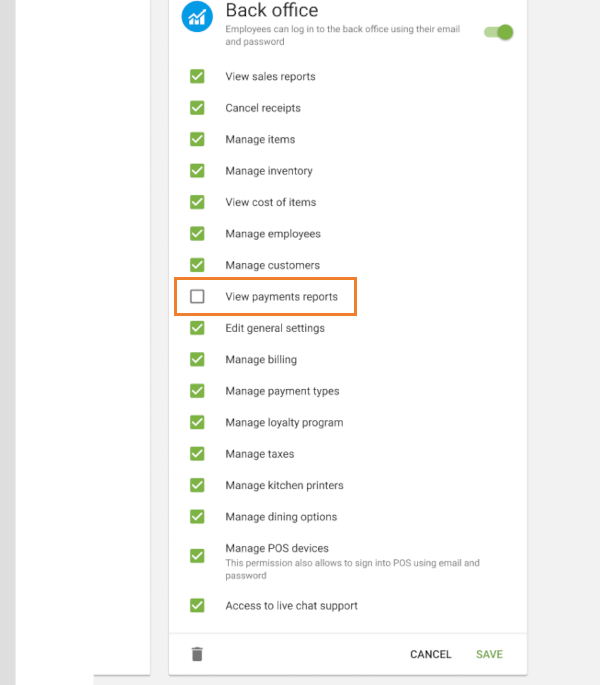
By default, only the account Owner can view payment reports. To grant this access to other employees, go to the employee's access rights settings and enable View Payment Reports for the relevant role.
Enabling this access right allows employees to access the Payments menu in Backoffice.
Note: Loyverse Payments can only be activated by the account owner.
See also:
How to Activate Loyverse Payments
How to Accept Card Payments with Loyverse POS and Loyverse Payments on Terminal
How to Process Refunds of Sales Made with Loyverse Payments
How to Accept Card Payments with Loyverse POS through Tap to Pay on a Smartphone