Tap to Pay allows merchants to accept contactless payments from credit and debit cards directly on a smartphone running the Loyverse POS app — no additional hardware required.
Note: Tap to Pay is currently available in the USA, Switzerland, and Belgium.
Before You Begin
Loyverse Payments must be activated on your account in the Back Office, and a Loyverse Payments payment type must be configured.
Setting Up on Android
Requirements
- NFC-enabled smartphone running Android 13 or higher.
- Developer options must be disabled.
- NFC must be enabled.
- Security patch must be up to date.
- An active internet connection.
- Device location must be on, with location permission granted to the Loyverse POS app.
Setup Steps
Log in to the POS at a store with an active Loyverse Payments payment type.
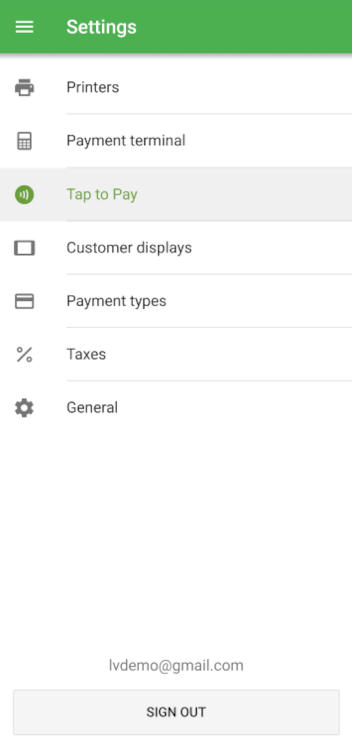
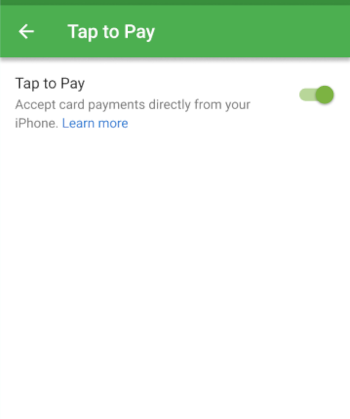
Go to Settings → Tap to Pay.
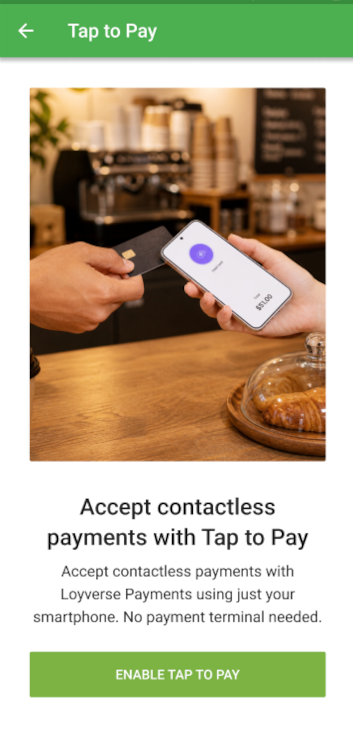
Enable Tap to Pay.
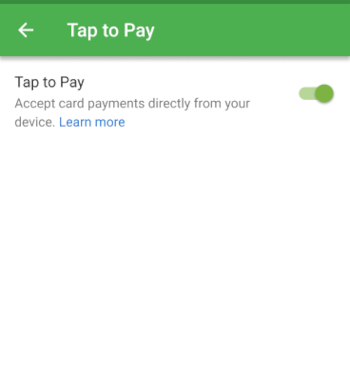
Once enabled, your Android smartphone is ready to accept contactless card payments.
Setting Up on iPhone
Requirements
- iPhone XS or newer.
Setup Steps
Log in to the POS at a store with an active Loyverse Payments payment type.
Go to Settings → Tap to Pay.
Enable Tap to Pay.
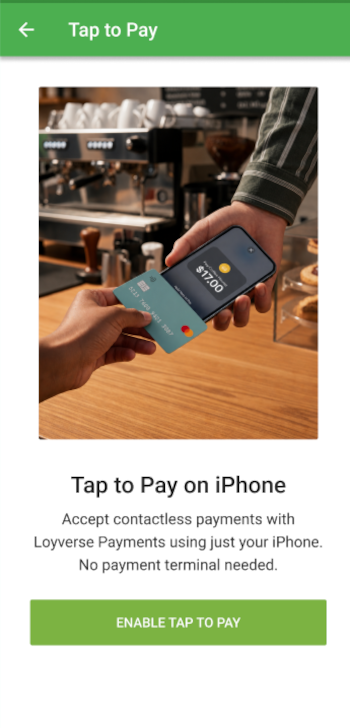
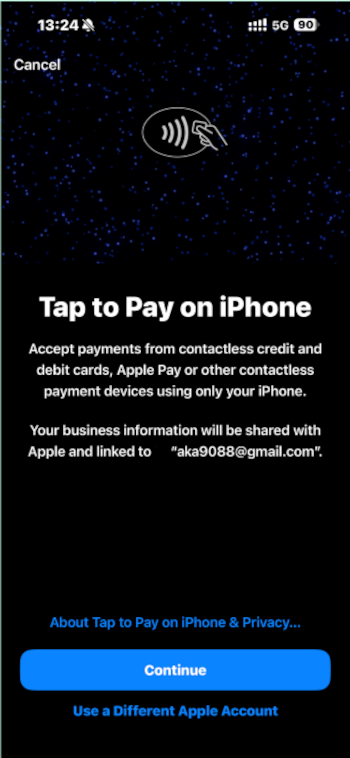
Tap Continue to link your Apple account to accept contactless payments.
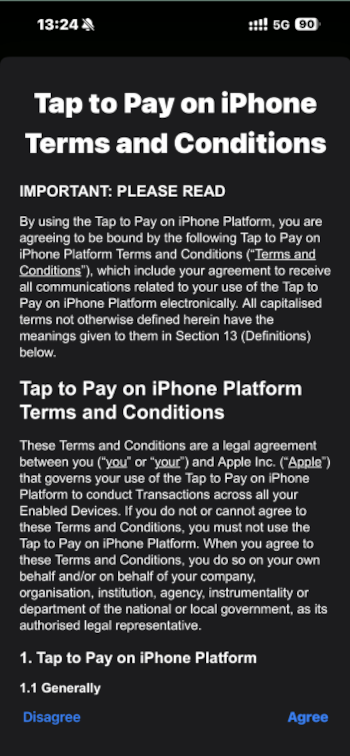
Read and accept the terms and conditions. Your account will then be linked.

Once enabled, your iPhone is ready to accept contactless card payments.
Processing a Payment
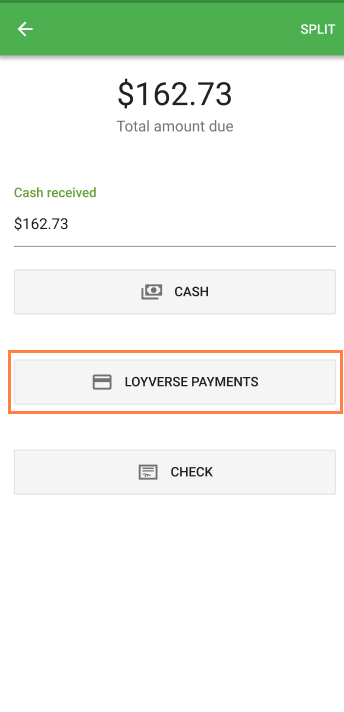
Add items to the ticket and tap Charge.
Select Loyverse Payments as the payment method.
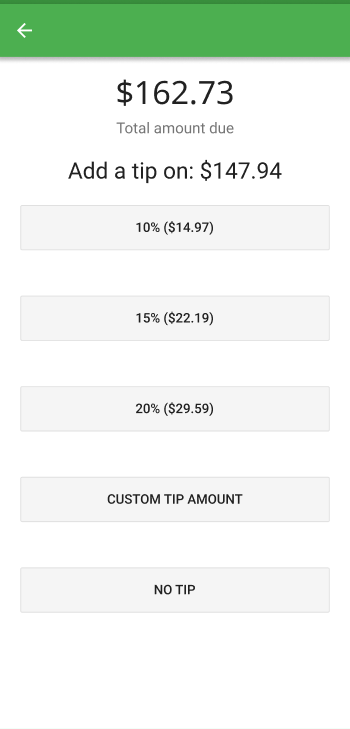
If tips are enabled in the payment type settings, tip options will appear on screen for the customer to select.
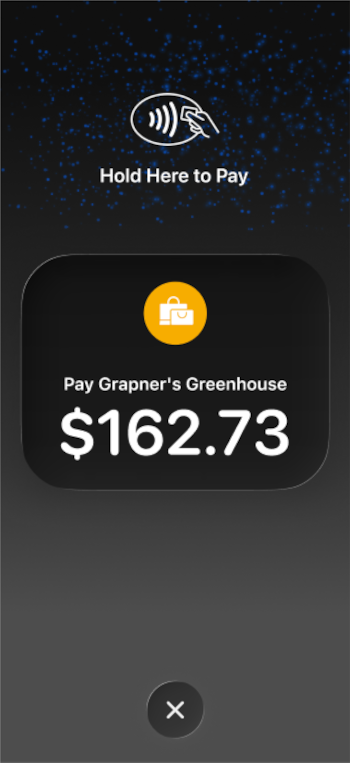
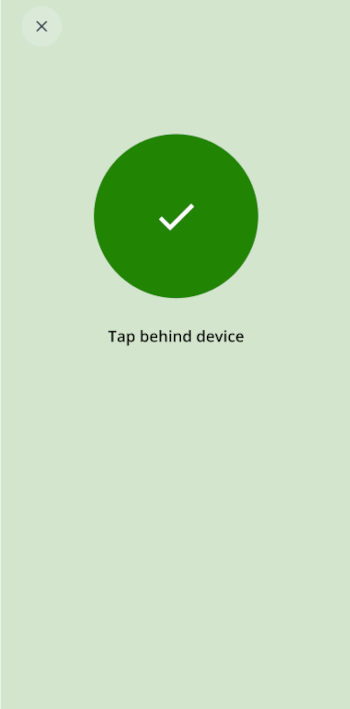
The screen will begin to blink, indicating the smartphone is ready to receive the card tap:
On iPhone: the customer can tap on the screen or the back of the device.
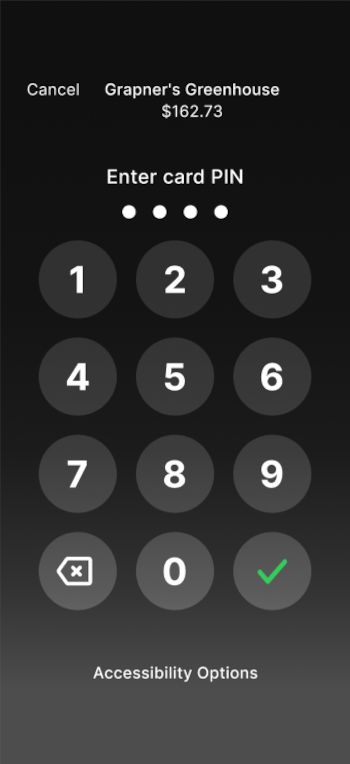
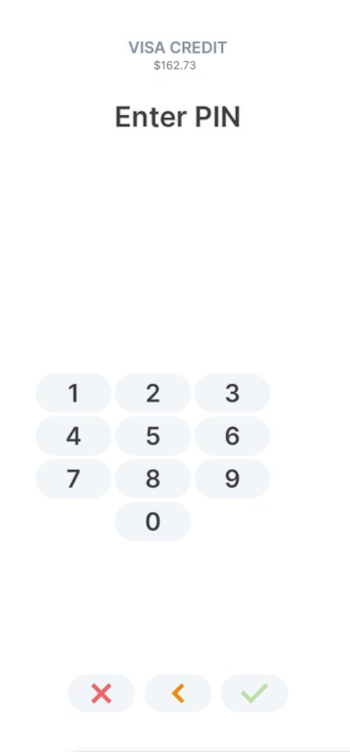
Turn the screen toward the customer so they can enter their PIN to approve the transaction.
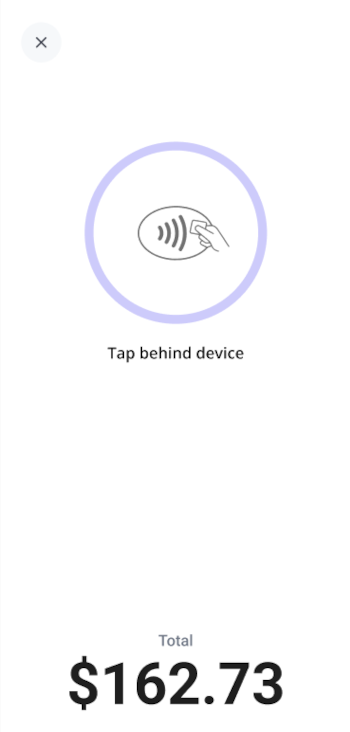
On Android: the customer should tap from the back of the device only.
A green confirmation indicator will appear once the payment is complete.
If prompted, turn the screen toward the customer so they can enter their PIN to approve the transaction.
Loyverse POS will display the total amount paid.
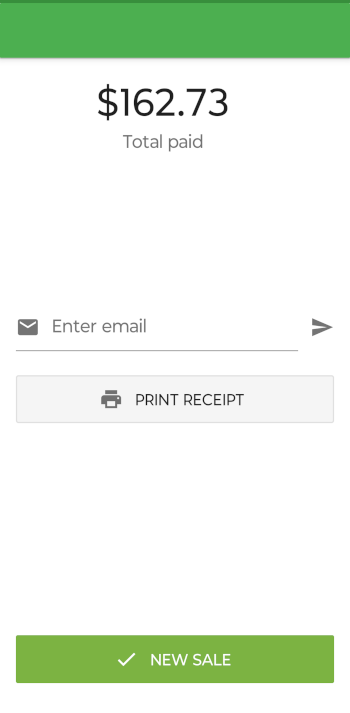
You can then print a receipt, email it to the customer, or start a new sale.
If the Transaction Fails
- An error message will be displayed on the POS screen.
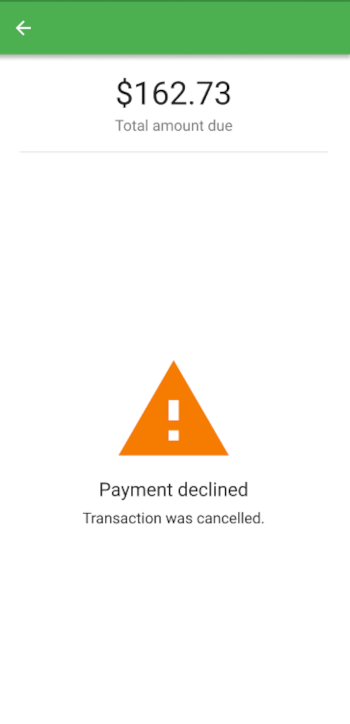
- You can return to the payment method selection screen to retry, or choose an alternative payment method such as cash.
See also:
How to Activate Loyverse Payments
How to Accept Card Payments with Loyverse POS and Loyverse Payments on Terminal
How to Process Refunds of Sales Made with Loyverse Payments
How to View Card Transactions of Loyverse Payments and Payouts