1. Connecting the Terminal to Loyverse POS
2. Processing a Payment
Loyverse POS merchants can accept credit and debit card payments using a Smart Reader.
Note: This feature is currently available in the USA, Switzerland, and Belgium.
Before You Begin
- Loyverse Payments must be activated on your account in the Back Office, and a Loyverse Payments payment type must be configured.
- You must have ordered and received your terminal through the Loyverse online store.
- The terminal must be connected to the internet via Wi-Fi before pairing.
1. Connecting the Terminal to Loyverse POS
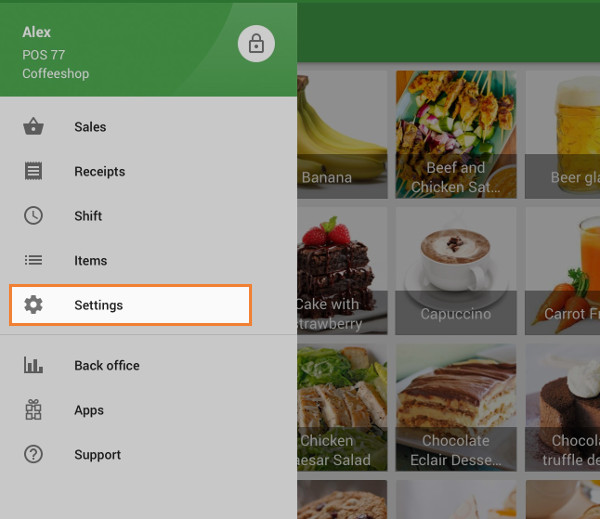
Open the Loyverse POS app.
Go to Settings → Payment Terminal.
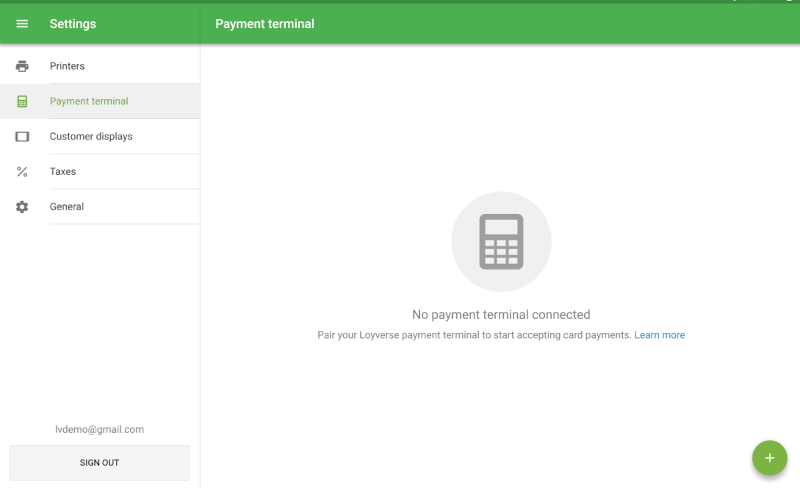
Tap the + button to add and pair a new terminal.
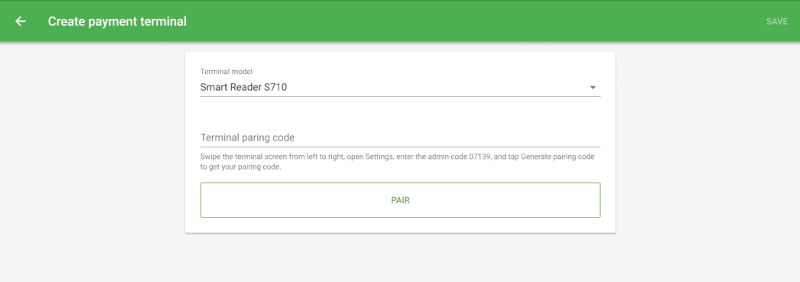
Select the Terminal model.
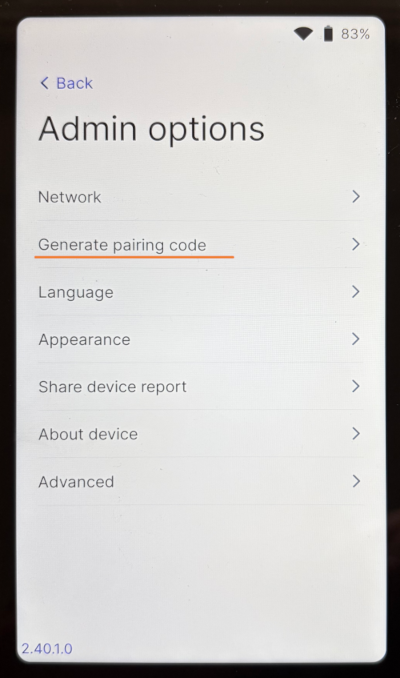
On the terminal, generate a pairing code:
- Swipe the terminal screen from left to right.
- Open Settings and enter the admin code 07139.
- Tap Generate Pairing Code.
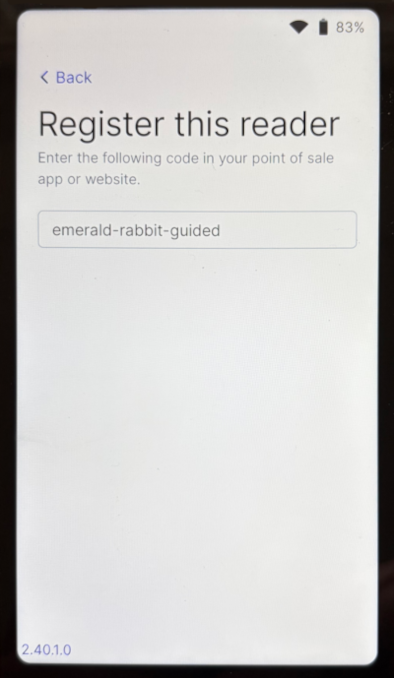
Enter the pairing code into the Create Payment Terminal form on the POS and tap Pair.
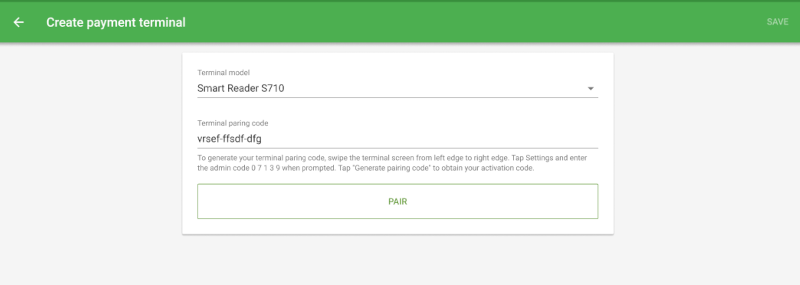
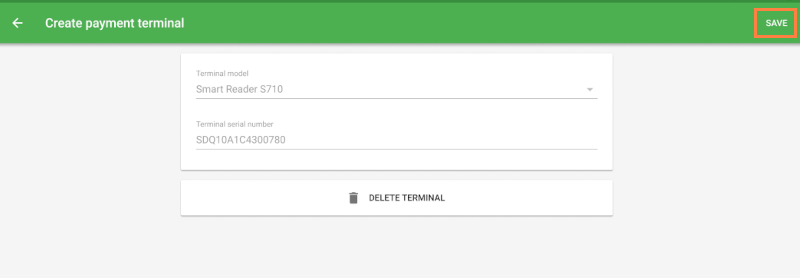
After successful pairing, confirm the terminal model name and tap Save.
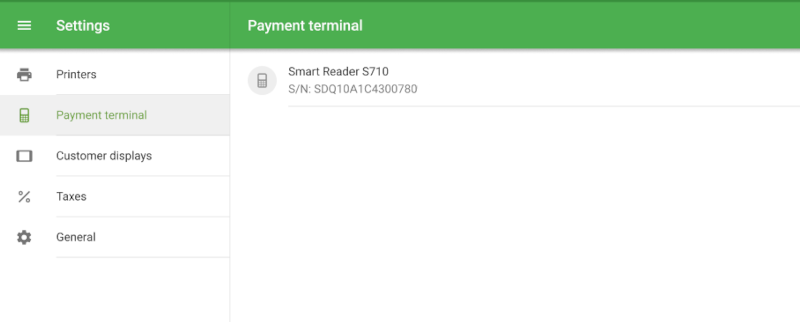
The paired terminal will appear in the Payment Terminal section.
2. Processing a Payment
Make sure the terminal is connected to the internet before processing payments.
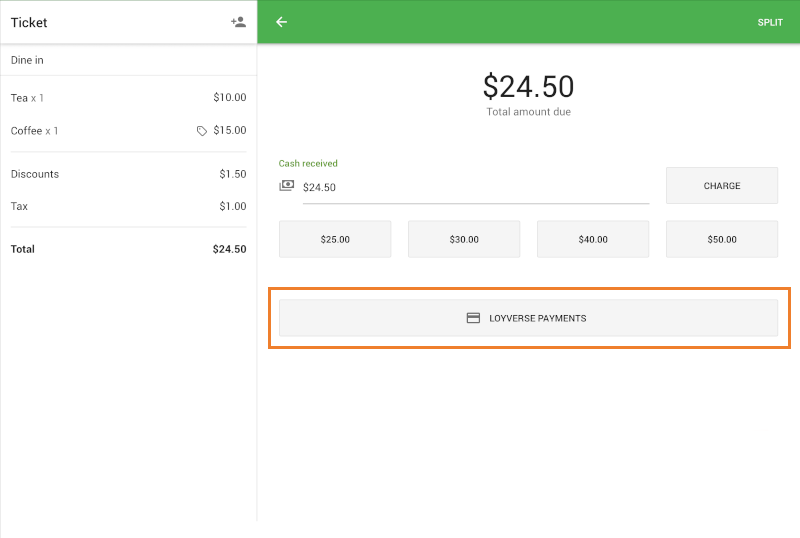
Add items to the ticket and tap Charge.
Select Loyverse Payments as the payment method.
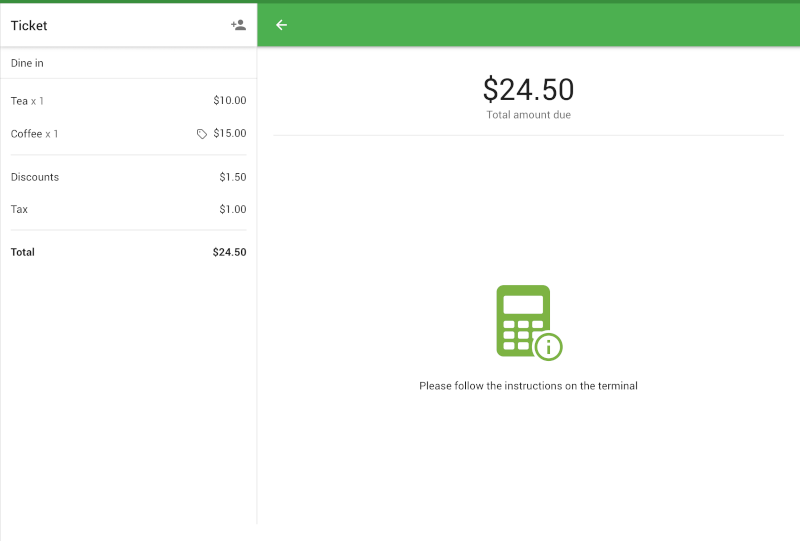
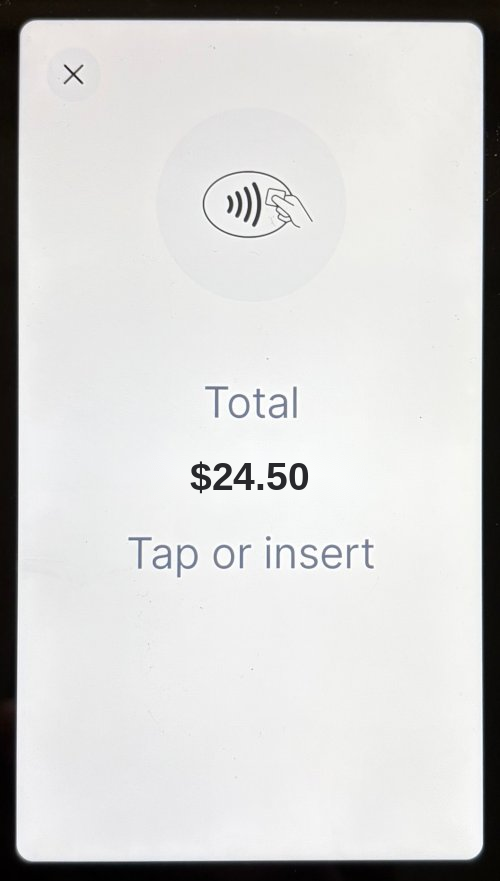
Follow the instructions on the terminal. The customer will be prompted to insert, swipe, or tap their card.
If the Payment Is Successful
Loyverse POS will display the total amount paid.
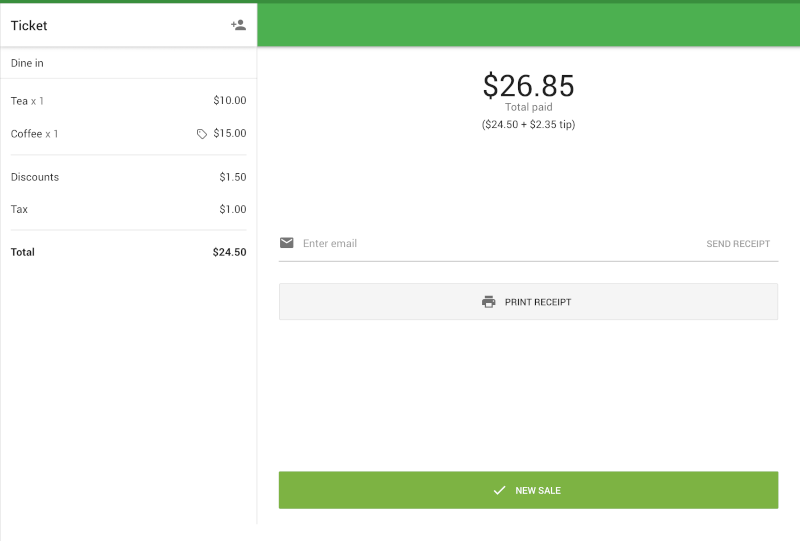
- You can print the receipt, email it to the customer, or start a new sale.
If the Transaction Fails
An error message will be displayed on the POS screen.
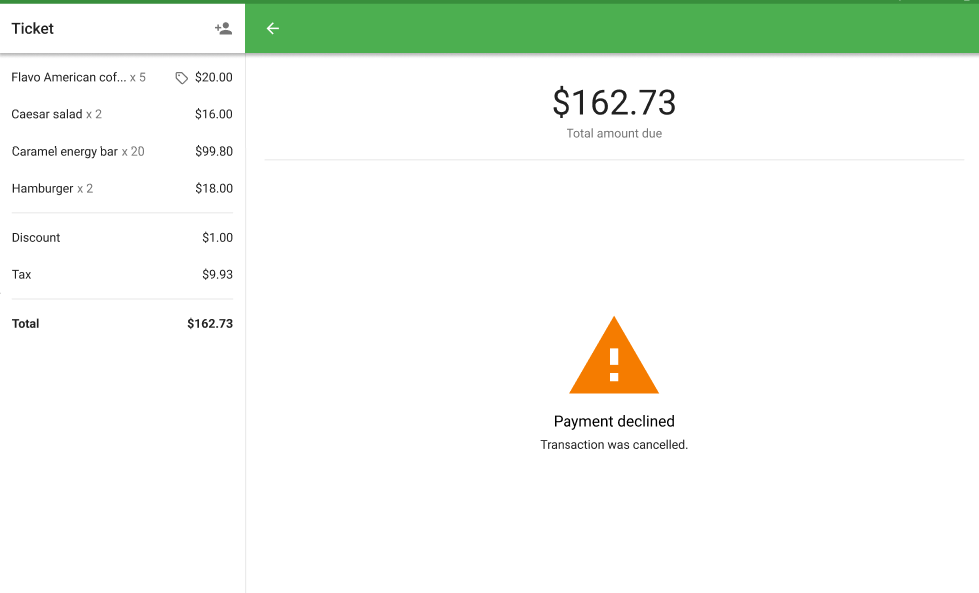
- You can return to the payment method selection screen to retry, or choose an alternative payment method such as cash.
See also:
How to Activate Loyverse Payments
How to Process Refunds of Sales Made with Loyverse Payments
How to Accept Card Payments with Loyverse POS through Tap to Pay on a Smartphone
How to View Card Transactions of Loyverse Payments and Payouts