You can process refunds for sales made with Loyverse Payments — whether the original payment was made at a terminal or via Tap to Pay. Both full and partial refunds are supported.
Note: No terminal or card is required to process a refund.
Steps to Process a Refund
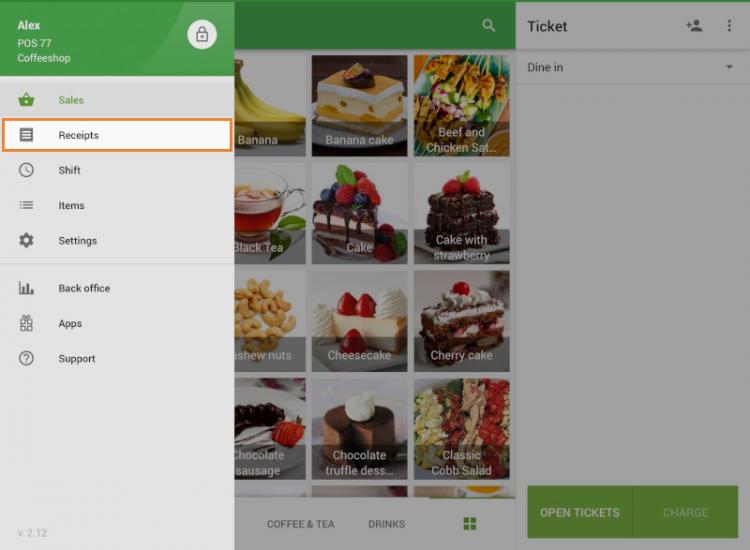
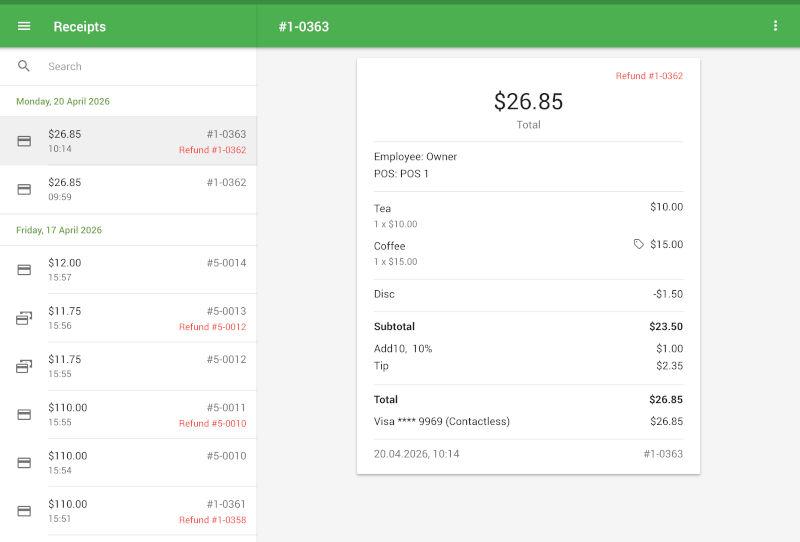
In the Loyverse POS app, go to the Receipts menu.
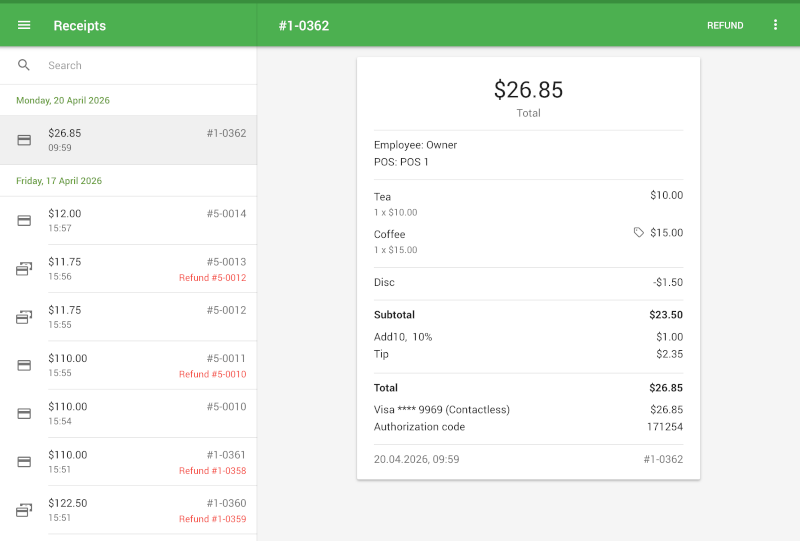
Tap the receipt you want to refund.
Tap Refund.
Select the items to refund — they will move to the right side of the screen. If applicable, you can also select the tip amount to refund.
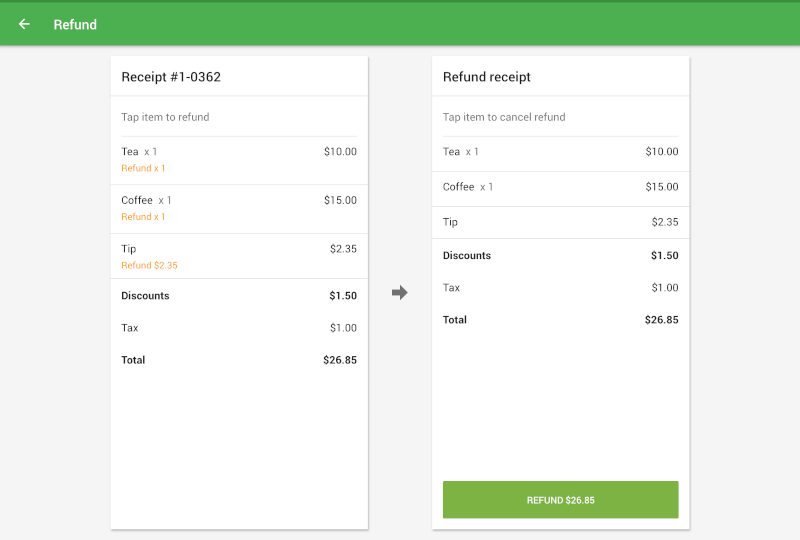
Tap the Refund button to confirm.
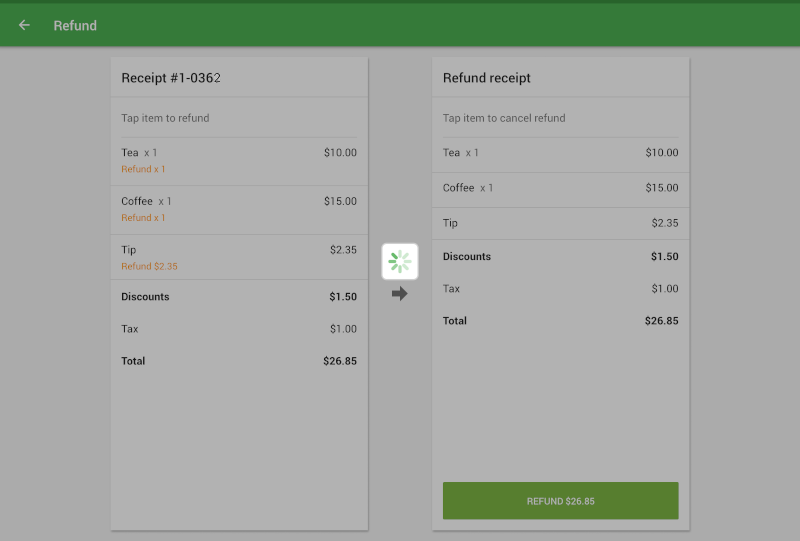
Once processed, the refund will be applied and a refund receipt will be added automatically.
See also:
How to Activate Loyverse Payments
How to Accept Card Payments with Loyverse POS and Loyverse Payments on Terminal
How to Accept Card Payments with Loyverse POS through Tap to Pay on a Smartphone
How to View Card Transactions of Loyverse Payments and Payouts