Negative stock alerts notify cashiers when there isn’t enough stock available to complete a sale. This feature helps prevent inventory from going into negative values and gives you better control over stock levels.
Requirements
To receive negative stock alerts:
- The Track stock option must be enabled for the items.
- The Negative stock alerts feature must be turned on in the Back Office.
How to Enable Negative Stock Alerts
Log in to the Back Office.
Go to the Settings menu.
Open the Features section.
Turn on Negative stock alerts.
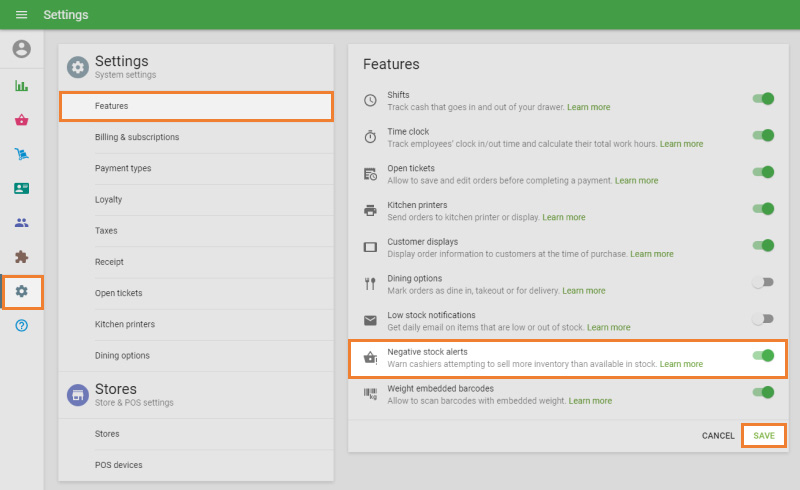
Click Save.
How Negative Stock Alerts Work
When this feature is enabled, the system displays a warning if a cashier tries to add a quantity of an item to the ticket that exceeds the available stock.
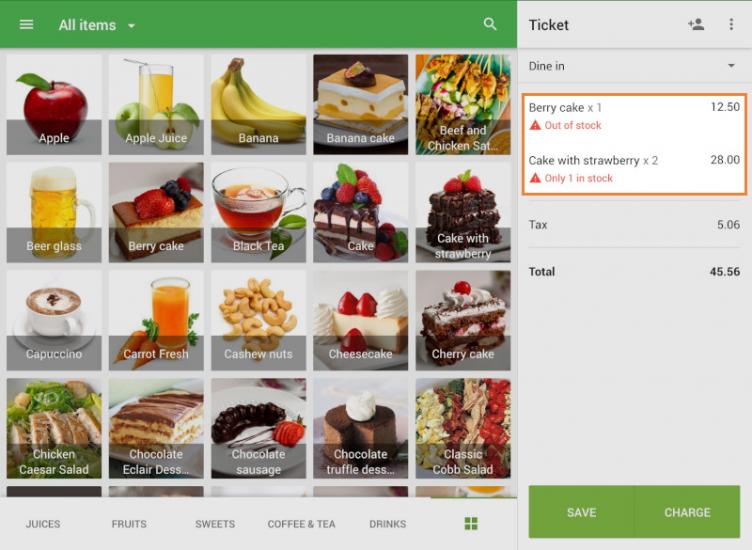
If the item has a stock quantity greater than 0, the alert will show how many units are still available for sale.
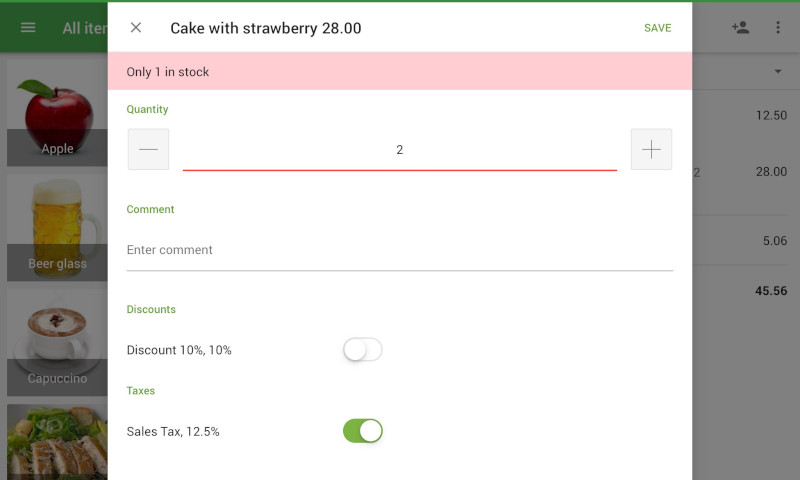
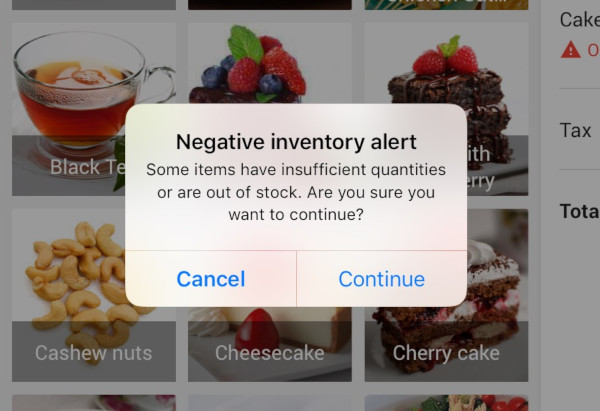
The warning appears both:
- When editing the quantity of an item already added to the ticket
- When tapping the Charge button before completing the sale
Alerts also apply to composite items, based on the availability of their components.
Cashiers can:
- Reduce the quantity of the item and tap Save if stock is still available, or
- Proceed with the sale by tapping Continue, even if the stock is insufficient.
Important Note
Negative stock alerts require an active internet connection. Warnings will not be displayed when the POS is working in offline mode.
See also: