Loyverse POS merchants can accept credit and debit card payments using a Mobile Reader M2 and WisePad 3 — compact card readers that connect to mobile devices running Loyverse POS via Bluetooth.
Note: With Loyverse Payments, Mobile Reader M2 is available only in the USA, while WisePad 3 is available only in Switzerland and Belgium.
Before You Begin
- Loyverse Payments must be activated on your account in the Back Office, and a Loyverse Payments payment type must be configured.
- You must have ordered and received your Bluetooth card reader through the Loyverse online store.
- Do not pair the card reader manually through your mobile device’s Bluetooth settings. Pairing must be completed directly in the Loyverse POS app.
1. Connecting the Card Reader to Loyverse POS
1. Open the Loyverse POS app.
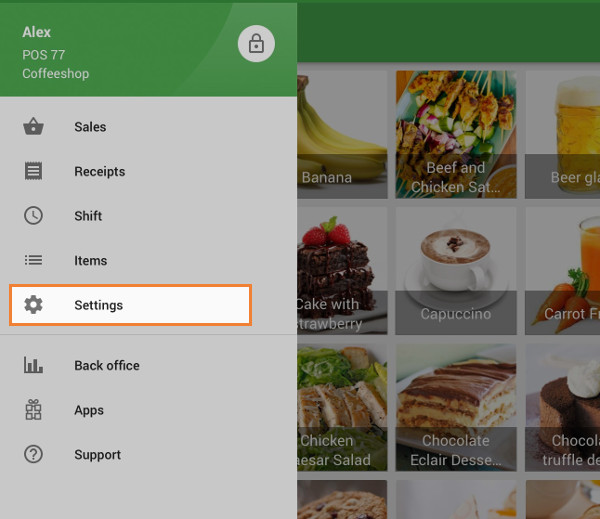
2.Go to Settings → Payment Terminal.
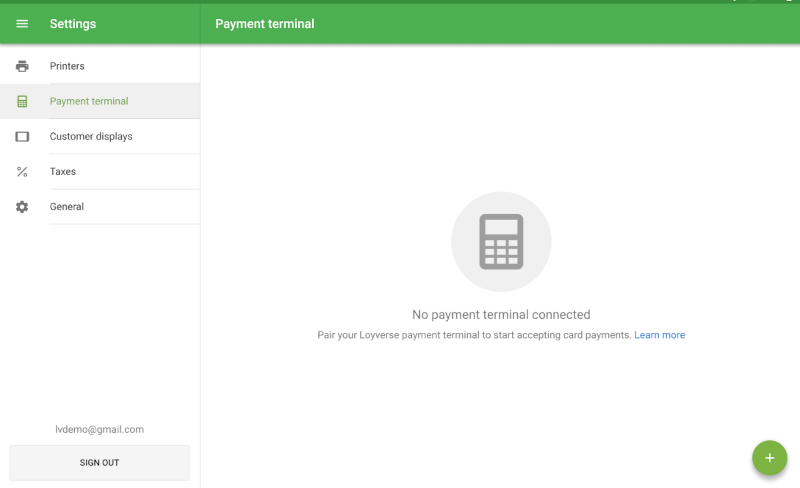
3.Tap the + button to add and pair a new terminal.
4.Select your device as a Terminal model.
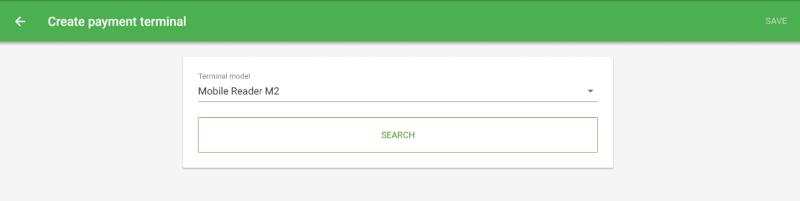
You may be prompted to grant the app permissions for location services, Bluetooth, or nearby devices, depending on your OS version. These requests typically occur during terminal model selection or when initiating a search for available readers.
5.Turn on the card reader. Then tap Search to scan for nearby Bluetooth terminals.
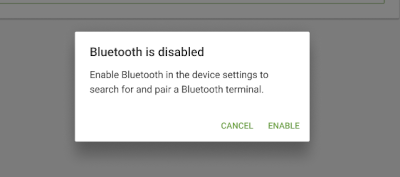
- If Bluetooth is disabled on your device, you will be prompted to enable it before searching.
6.Once the search completes, select your payment device from the list:
- If only one card reader is found, it will be selected automatically.
- If multiple card readers are found, select the correct one from the list by its model name and serial number.
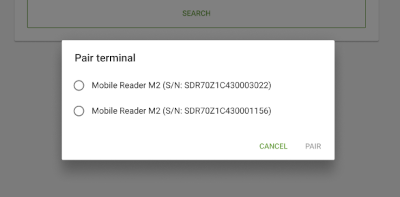
7.Tap Pair.
WisePad 3 card readers may ask you for confirmation of the connection. Tap the green button on the device to confirm.
Firmware Updates During Pairing
When you tap Pair, the app automatically checks whether a firmware update is available for the card reader:
- Required update — The update starts immediately. A progress indicator is displayed on screen. The card reader will be paired only after the update completes successfully.
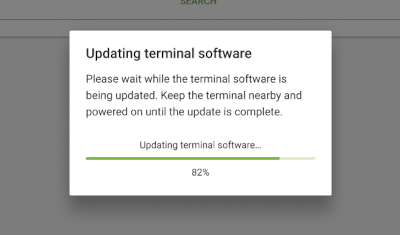
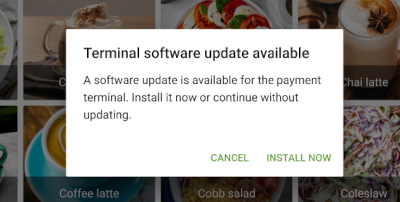
- Optional update — After pairing, you will be prompted to install the update. You can choose to Install Now or Cancel.
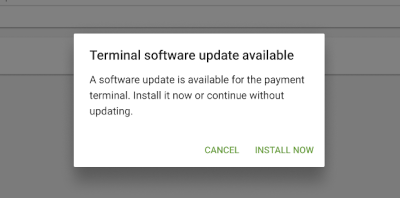
Note: If the card reader battery is too low, the firmware update cannot start and an error message will be displayed. Charge the card reader before trying again. If a firmware update is interrupted for any reason, the card reader will not be paired and you will need to restart the process.
8.After successful pairing, tap Save to add the card reader as the payment card reader for this POS.
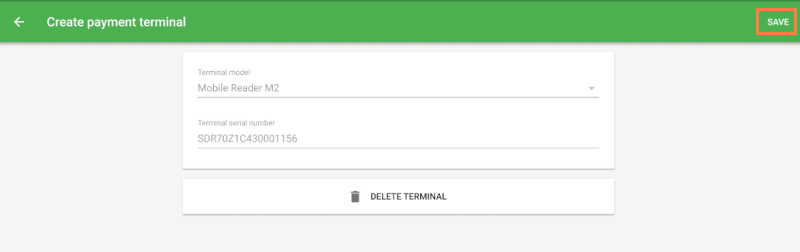
The paired card reader device will appear in the Payment Terminal section with its model name and serial number.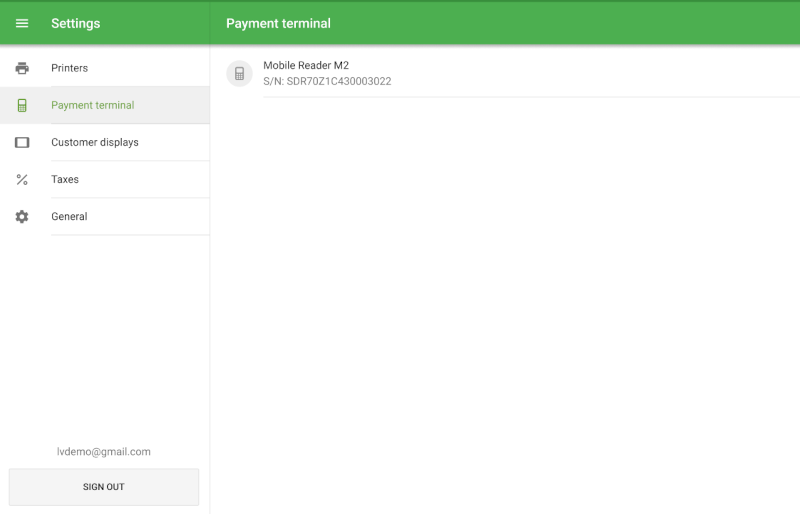
Firmware Updates When Launching the POS App
If a firmware update is available when you open the Loyverse POS app, the following will happen:
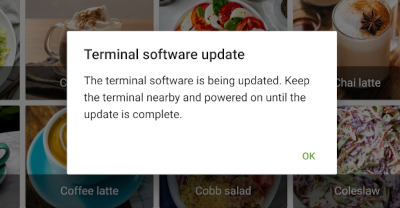
- Required update — A notification is displayed. After you dismiss it, the update continues in the background. You can monitor progress in your device's notification area.
- Optional update — You will be prompted to Install Now or Cancel. If you choose to install, the update runs in the background.
Once a background update is complete, a confirmation message will appear on screen. If the update fails, you will see a corresponding error notification.
Note: If you begin a payment while a firmware update is in progress, the update progress will be shown on the Payment screen. The payment cannot be processed until the update is complete.
2. Processing a Payment
Make sure the device running Loyverse POS is connected to the internet, and the card reader is connected to the POS via Bluetooth, before processing payments.
1.Add items to the ticket and tap Charge.
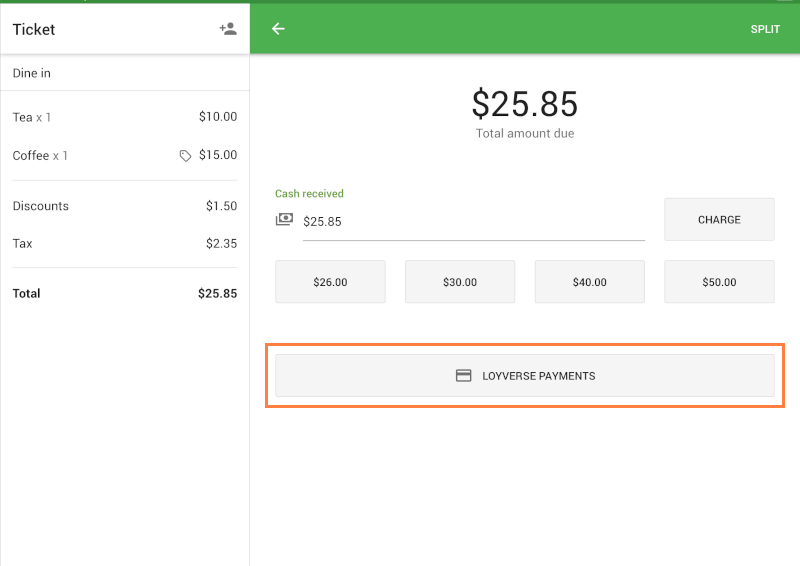
2.Select Loyverse Payments as the payment method.
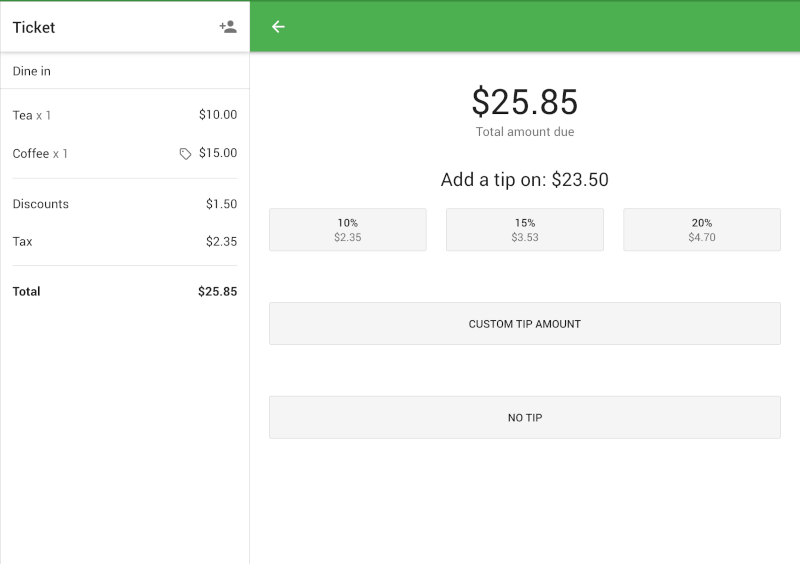
3.If tips are enabled, you will also see a tip selection screen.
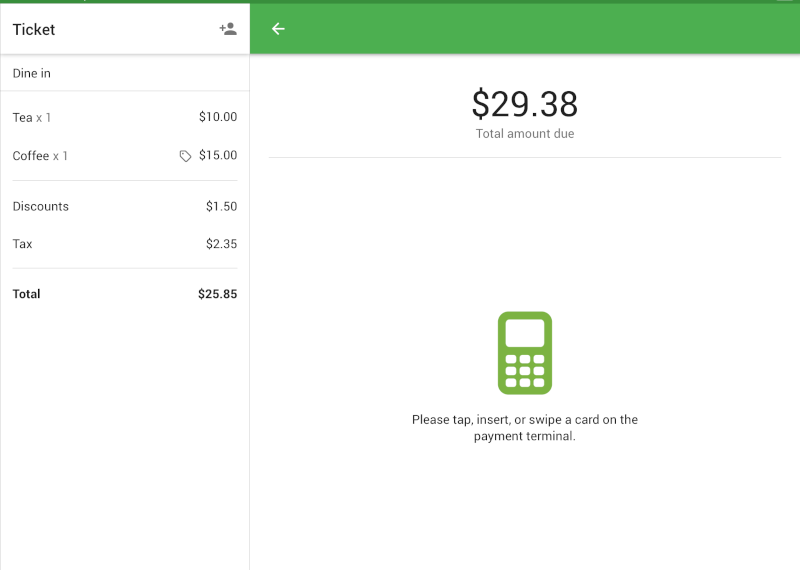
4.The customer will be prompted to tap, insert, or swipe their card on the Mobile Reader M2 or tap or insert on the WisePad 3.
If the Payment Is Successful
- Loyverse POS will display the total amount paid.
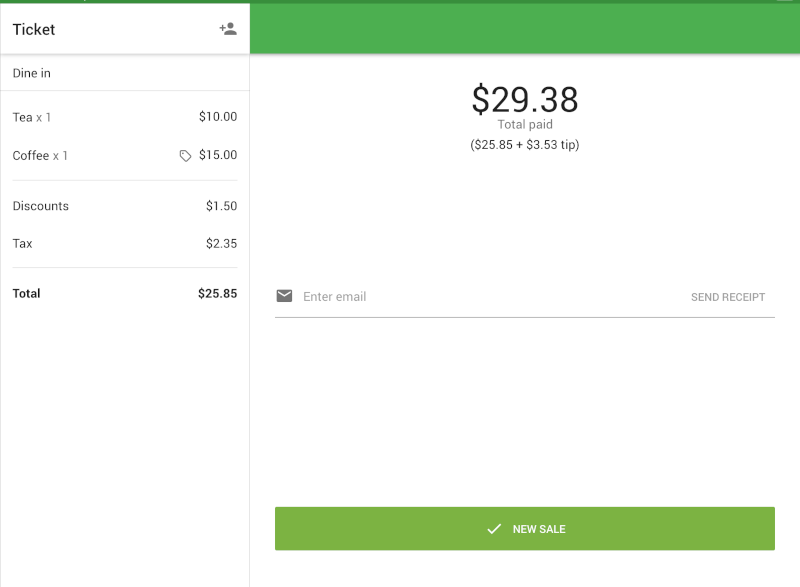
- You can print the receipt, email it to the customer, or start a new sale.
If the Transaction Fails
- An error message will be displayed on the POS screen.
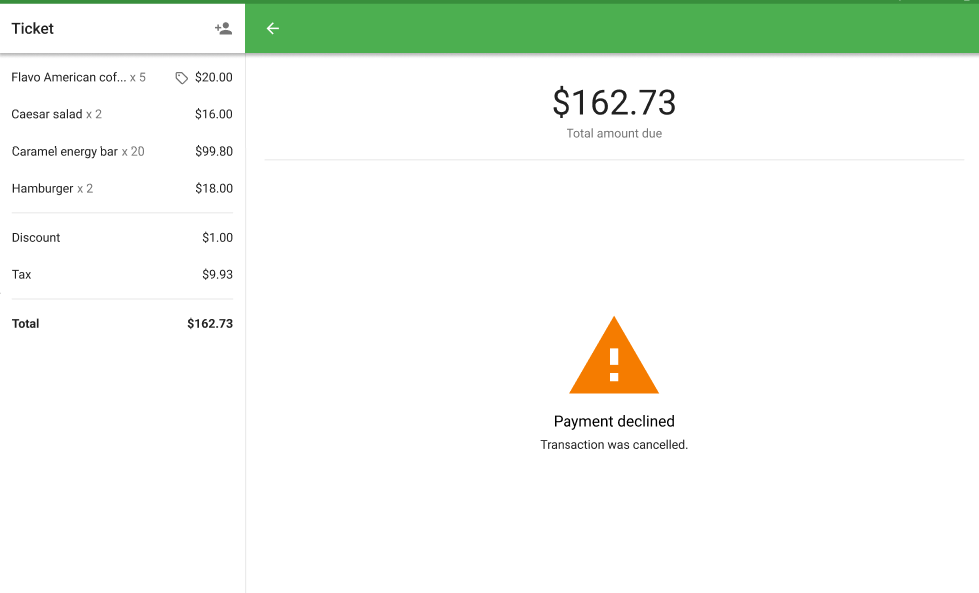
- You can return to the payment method selection screen to retry, or choose an alternative payment method such as cash.
See also:
How to Activate Loyverse Payments
How to Process Refunds of Sales Made with Loyverse Payments
How to Accept Card Payments with Loyverse POS and Loyverse Payments on Terminal
How to Accept Card Payments with Loyverse POS through Tap to Pay on a Smartphone
How to View Card Transactions of Loyverse Payments and Payouts