Inventory History gives you a complete record of all stock changes across your business, including transfers, purchase orders, adjustments, sales, refunds, and more.
Note: Inventory History is part of Advanced Inventory Management and requires an active subscription. See Advanced Inventory Management Overview to learn how to activate it.
Viewing the Full Inventory History
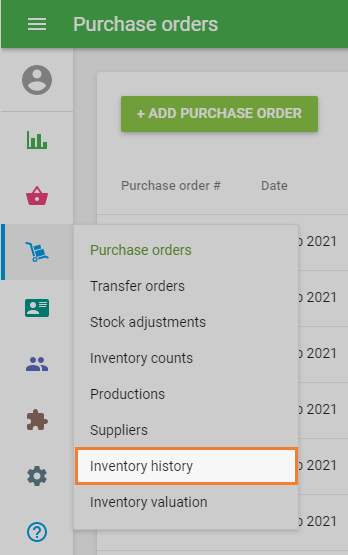
In the Back Office, go to Inventory Management → Inventory History.
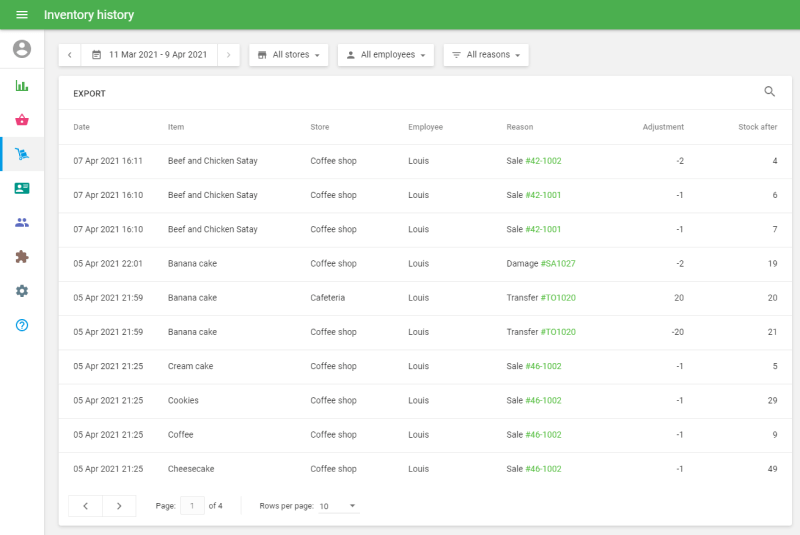
Here you'll see a log of all stock changes for every item with the Track Stock option enabled.
Filtering the History
You can narrow down the list using the following filters:
- Period — View changes within a specific date range.
- Store — Filter by one or more store locations.
- Employee — Filter by the employee who made the change.
- Reason — Filter by the type of change, such as sales, refunds, adjustments, transfers, or purchase orders.
For all stock changes except Item edit, the Reason column includes a direct link to the original document for easy reference.
Viewing Stock History for a Single Item
You can also view the stock change history for a specific item directly from its item form:
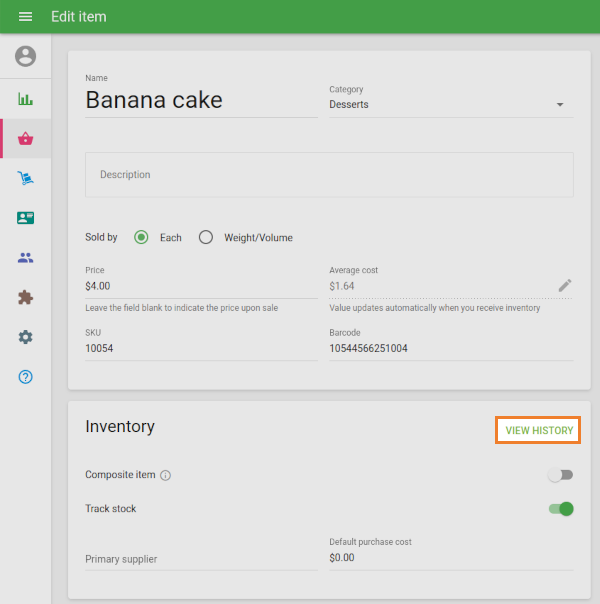
- Open the item for editing.
- Click the View History button.
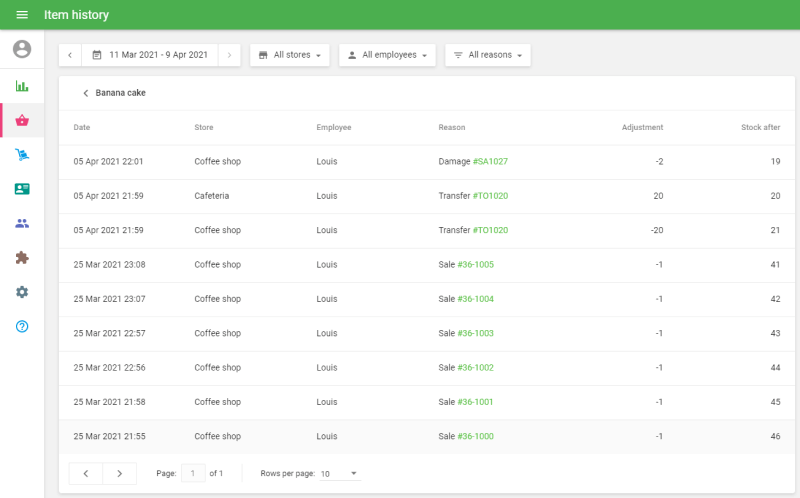
This will display a log of all stock changes for that item only.
See also:
Advanced Inventory Management Overview
How to Work with Purchase Orders and Suppliers
How to Work with Transfer Orders